
WPNexa Template Import Documentation
The WPNexa Importer plugin allows you to quickly import a complete demo template into your WordPress website. This includes required themes, plugins, demo content, media files, and database settings.
Before starting the import, please read the instructions carefully because the demo import process can replace your existing website data.
Before You Begin
Before importing a template, you must check your server requirements.
Go to:
WPNexa > System Status
On this page, review the following sections:
- System Health Report
- Required PHP Extensions
Make sure all required settings and PHP extensions are available before starting the import.
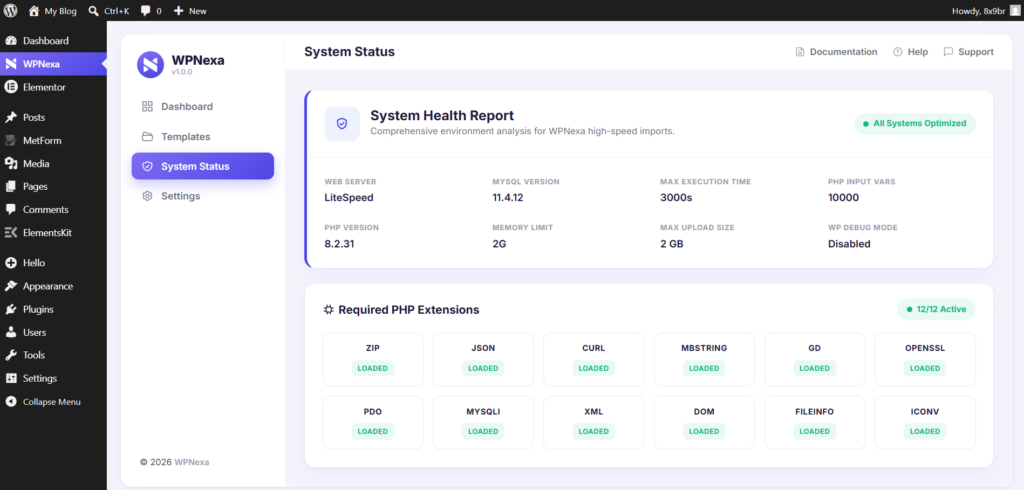
Important: If your server does not meet the required system settings, the import process may fail or may not complete properly.
Step 1: Install the WPNexa Importer Plugin
First, install the WPNexa Importer plugin on your WordPress website.
Instructions
- Log in to your WordPress admin dashboard.
- Go to Plugins > Add Plugin.
- Click the Upload Plugin button.
- Click Choose File and select the
wpnexa-importer.zipfile. - Click Install Now.
- Once the installation is complete, click Activate Plugin.
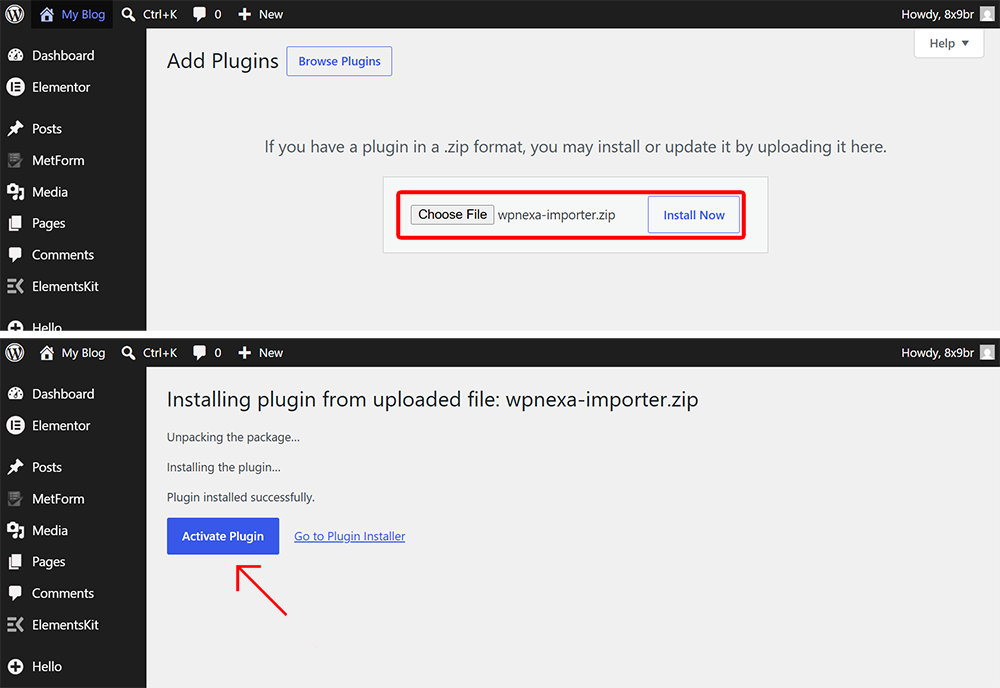
After activation, the WPNexa Importer option will be available in your WordPress dashboard.
Step 2: Open the WPNexa Importer Page
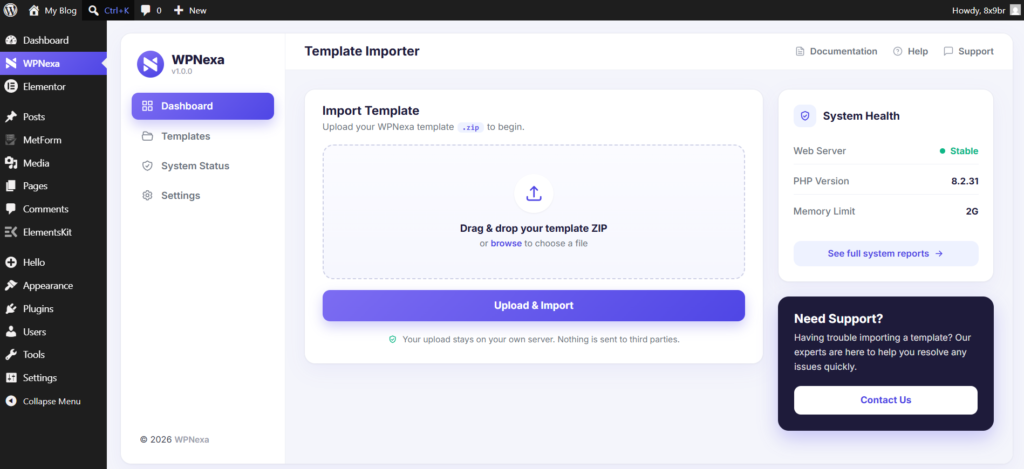
After activating the plugin, go to the WPNexa Importer page from your WordPress dashboard.
Go to:
WPNexa > Importer
On this page, you will see an option to upload your template ZIP file.
Step 3: Upload the Template ZIP File
You can upload the template ZIP file in either of the following ways:
- Click the upload area and select the template ZIP file from your computer.
- Drag and drop the template ZIP file into the upload area.
After selecting the file, click the Upload & Import button.
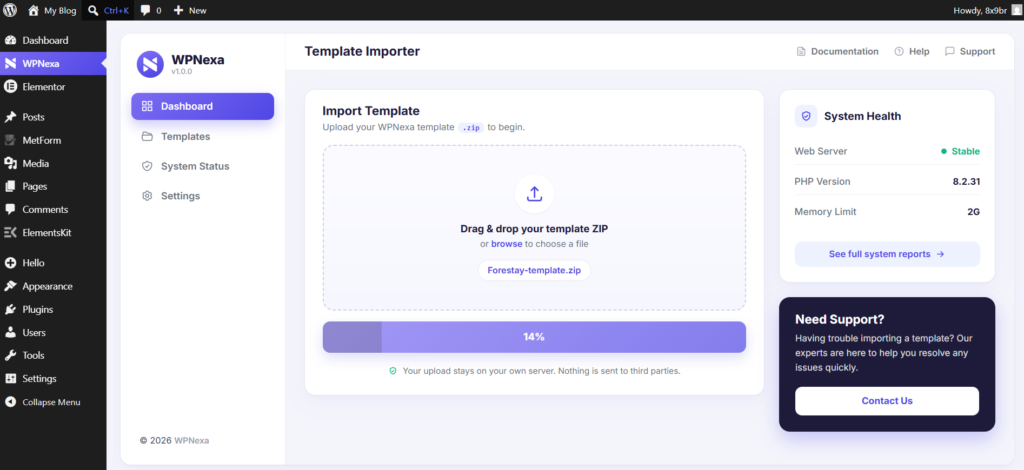
Wait until the template file is fully uploaded. Do not refresh or close the browser tab during this process.
Step 4: Backup Warning Before Import
Once the template file has been uploaded, WPNexa Importer will show a backup warning.
This warning appears because running the demo import will:
- Permanently delete all existing media files.
- Replace your current WordPress database.
- Install required themes and plugins.
- Import demo data and settings.
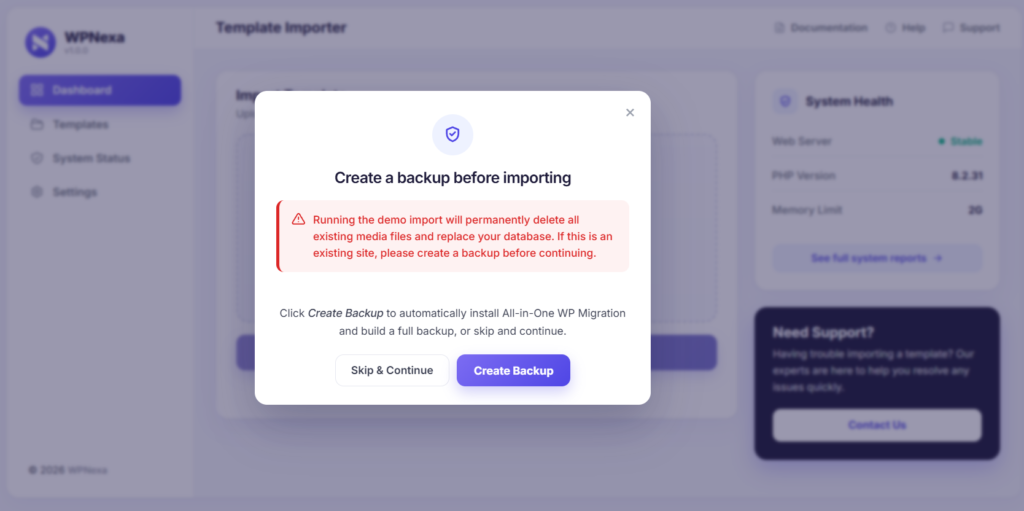
Warning: The demo import process will replace your existing website content. If you already have content on your website, create a backup before continuing.
Step 5: Choose Backup or Continue
At this stage, you will see two options.
Option 1: Create Backup
Choose this option if you are importing the demo template on an existing website.
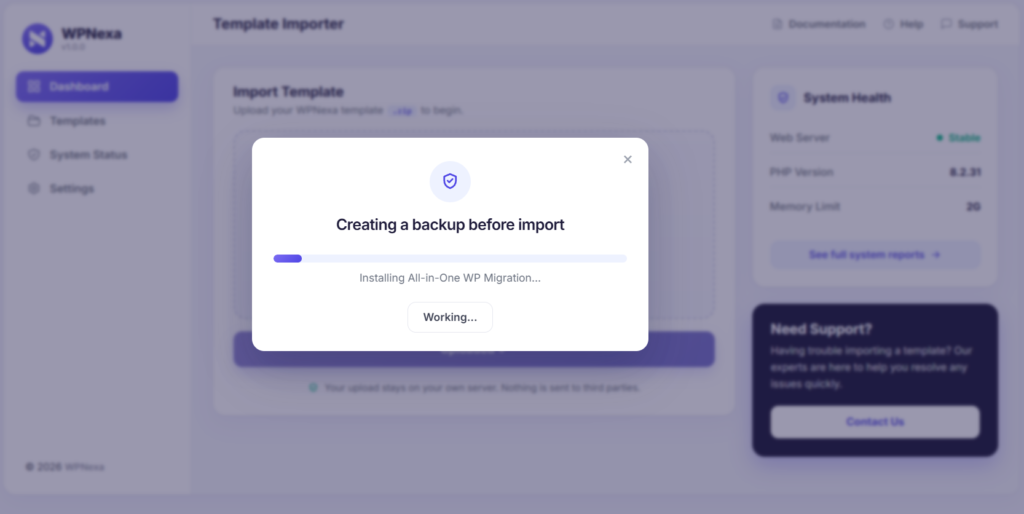
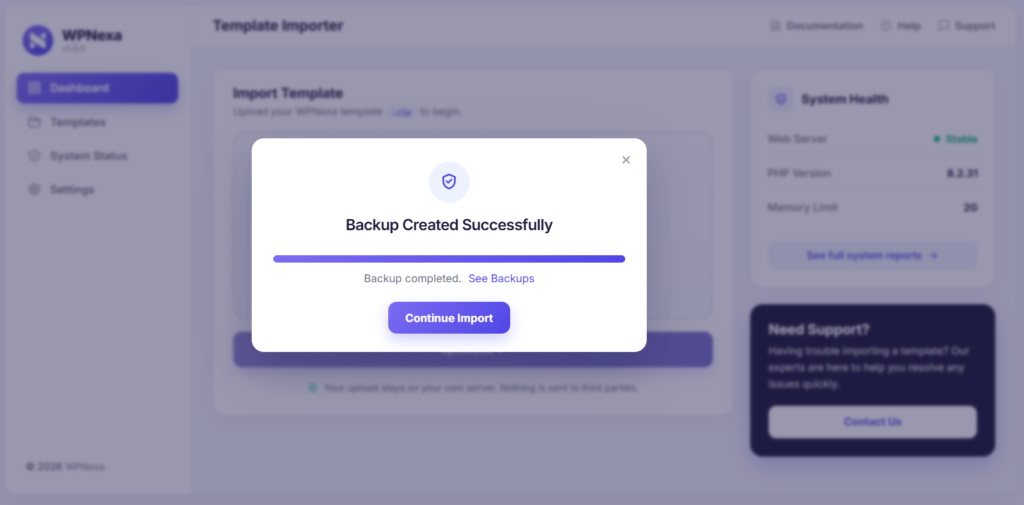
Click the Create Backup button.
WPNexa Importer will install the All-in-One WP Migration plugin and create a backup in the background.
This is recommended if your website already has pages, posts, media files, settings, or other important data.
Option 2: Skip and Continue
Choose this option if you are importing the demo template on a blank or fresh WordPress website.
Click the Skip and Continue button.
The import process will start immediately.
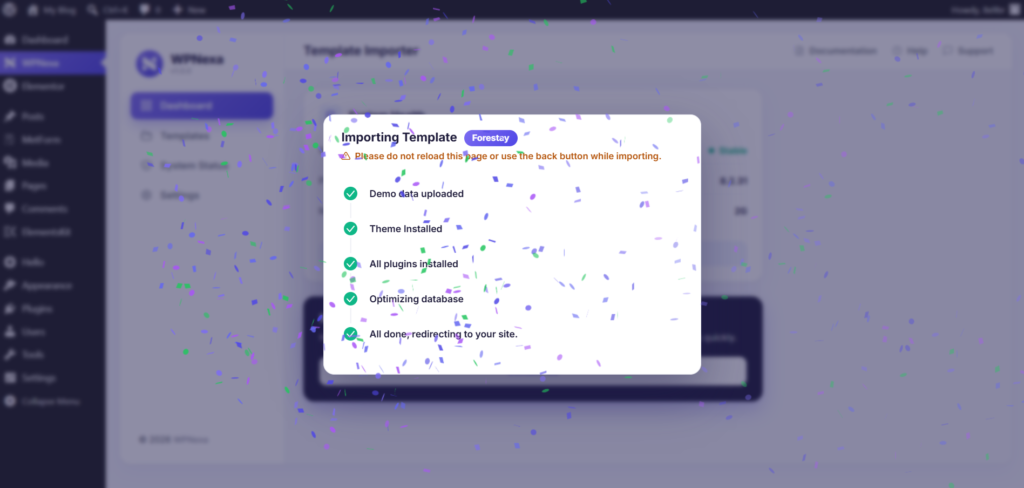
Step 6: Wait for the Import to Complete
After continuing, WPNexa Importer will begin importing the demo template.
During this process, it may install and configure:
- Required theme
- Required plugins
- Demo pages
- Demo posts
- Media files
- Menus
- Widgets
- Database settings
- Other demo content
The process may take a few minutes depending on your server performance and the size of the template.
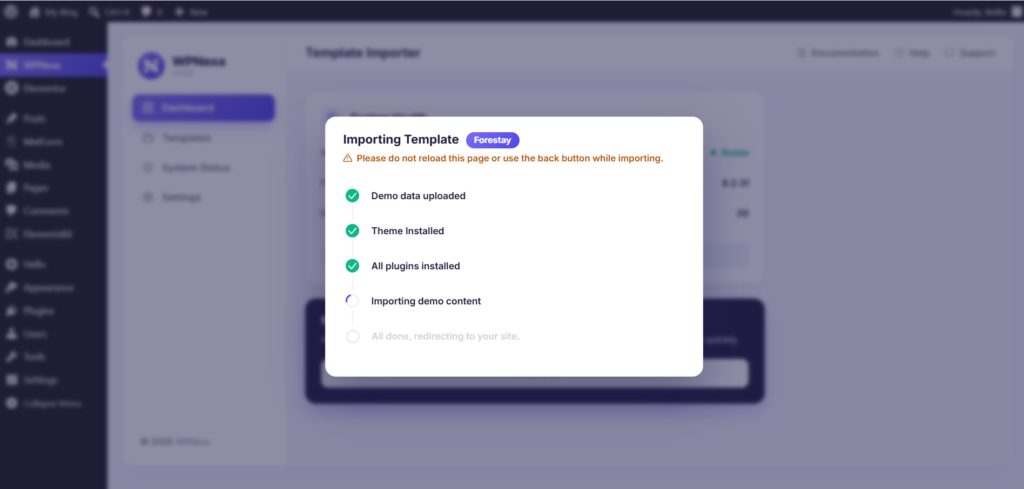
Note: Do not refresh the page, close the browser tab, or interrupt the import process while it is running.
Step 7: Import Completed
Once the import is completed successfully, you will be redirected to your website homepage.
You can now review the imported demo template on the frontend of your website.
Important Notes
Before importing a demo template, always check the System Status page.
Go to:
WPNexa > System Status
Make sure the following sections do not show any missing or failed requirements:
- System Health Report
- Required PHP Extensions
If anything is missing, contact your hosting provider or server administrator before running the import.
Troubleshooting
Import is taking too long
The import process may take several minutes depending on your hosting server. Please wait until the process is complete.
Import failed
If the import fails, check the WPNexa > System Status page and make sure all required PHP extensions and server settings are enabled.
Website already has content
If your website already contains content, always click Create Backup before importing the demo template.
Fresh WordPress installation
If you are importing on a blank or fresh WordPress website, you can click Skip and Continue to start the import directly.
Final Checklist
Before clicking the import button, confirm the following:
- WPNexa Importer plugin is installed and activated.
- Template ZIP file is ready.
- System Status requirements are checked.
- Required PHP extensions are enabled.
- Existing website backup is created, if needed.
- You understand that demo import will replace existing media files and database content.
Once everything is ready, you can safely upload and import your WPNexa template.